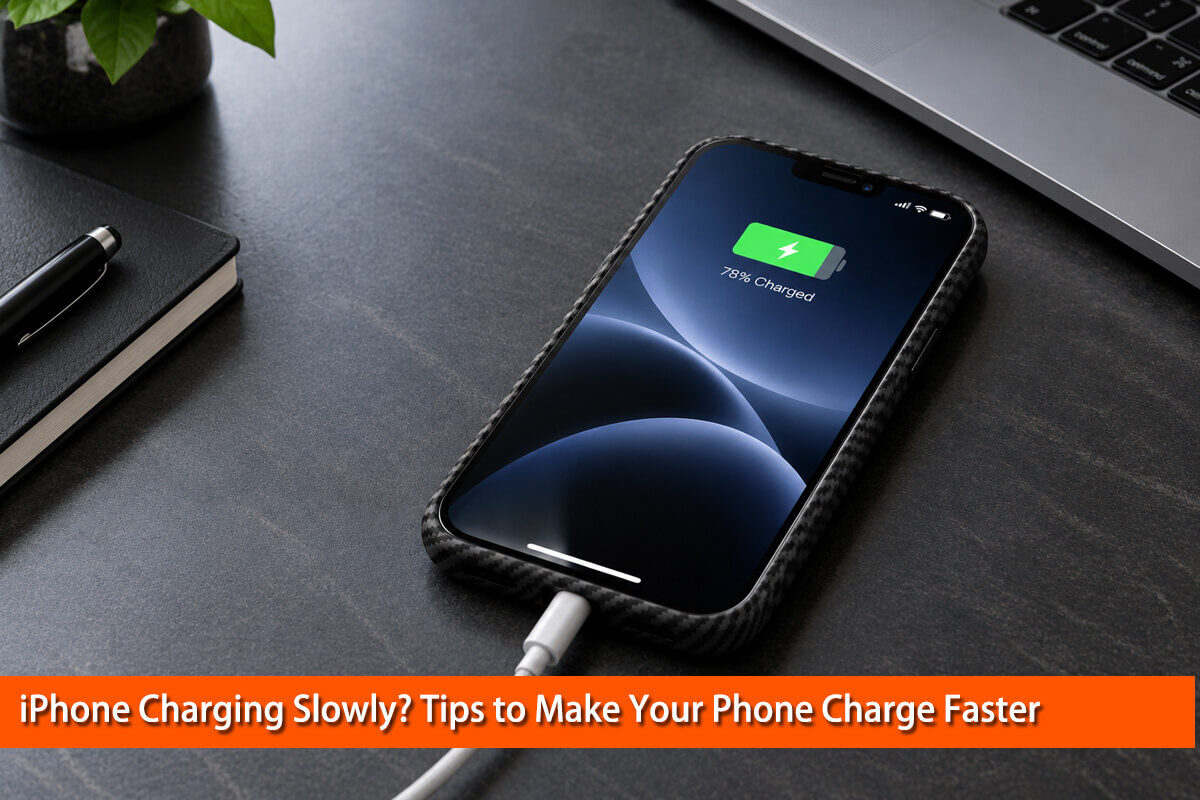
Have you ever plugged in your iPhone, waited for 30 minutes, and found that the battery percentage has barely increased? If you feel your iPhone charging slowly, the problem may be simpler than you think. A low-power adapter, damaged cable, high temperature, or charging setting can all affect charging speed.
The good news is that you do not always need a new battery or an expensive charger to fix the problem.
As a materials engineer, I look at charging performance as a system involving electrical power, battery chemistry, heat transfer, and the materials surrounding the device. Understanding how these factors work together can help you find the real cause of slow charging.
In this guide, you will learn why your iPhone charges slowly, how to make your iPhone charge faster, which accessories are worth considering, and when to seek professional help.
Why Is My iPhone Charging So Slowly?
Before changing your charging equipment, identify what might be limiting performance. The most common causes include:
- Low charger output: Your adapter or USB port may not provide enough power for fast charging.
- Damaged cables: A worn or unsuitable cable can cause unreliable charging.
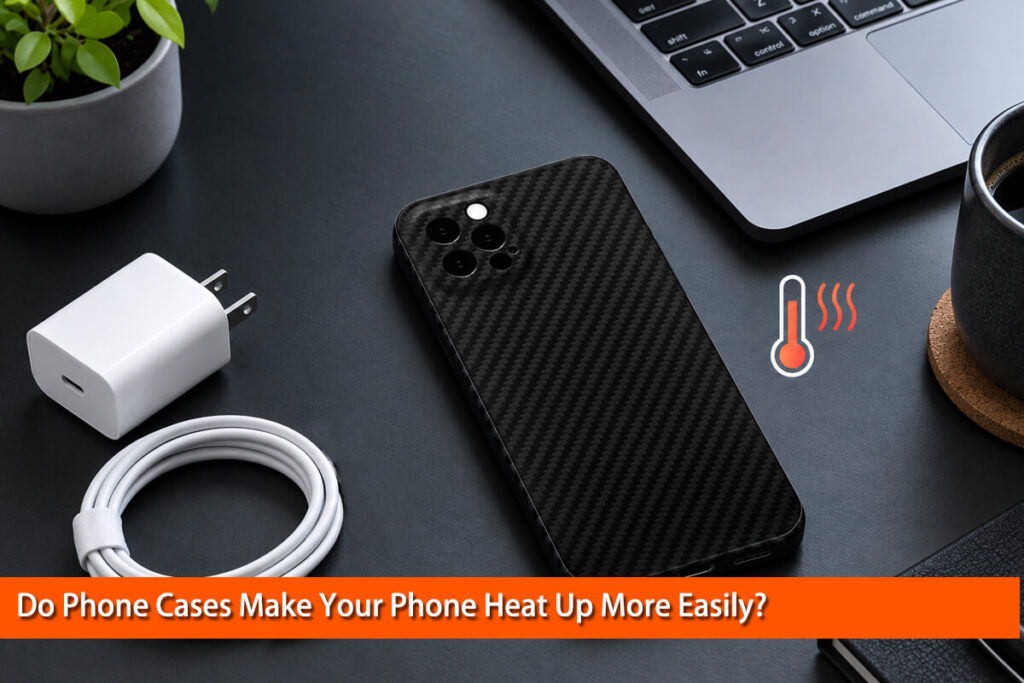
- Excessive heat: Your iPhone may reduce or temporarily pause charging to protect its battery.
- High power consumption: Gaming, video recording, and demanding apps consume power while the phone is charging.
- Battery settings: Optimized Battery Charging or a Charge Limit may affect when charging finishes.
- Hardware problems: A damaged charging port, aging battery, or faulty accessory may require further investigation.
Apple explains these factors in its official guide, About iPhone charge speeds.
The most effective approach is to check the simple causes first, then investigate more complicated problems if necessary.
12 Tips to Make Your iPhone Charge Faster
1. Use a Compatible Fast Charger
One of the easiest ways to improve charging speed is to use an appropriate power adapter.
For iPhone 15 and later, Apple recommends a USB-C Power Delivery (USB-PD) charger with a USB-C cable for faster wired charging. For iPhone 14 and earlier, a compatible USB-C-to-Lightning cable can be used with a suitable USB-C PD adapter.
USB Power Delivery is a charging standard that allows compatible devices and chargers to negotiate an appropriate power level. The USB Implementers Forum explains how USB-PD manages power delivery between devices, chargers, and cables.
However, a 65W charger does not force your iPhone to receive 65W. The phone controls how much power it accepts, based on its supported charging capabilities and operating conditions.
Choose a reputable, compatible charger rather than purchasing the highest-wattage adapter available.
For official model-specific requirements, see Apple’s guide to fast charging your iPhone.
2. Plug Your iPhone Directly Into a Wall Outlet
Charging through a computer, keyboard, or USB hub may be slower than using a dedicated wall adapter.
Some USB ports provide limited power. Multiport adapters may also reduce the power available to your iPhone when other devices are connected.
If your iPhone is charging slowly, try connecting a compatible adapter directly to a wall outlet.
This simple change can help you determine whether your original power source is the problem. You do not necessarily need to buy another charger before testing an existing compatible adapter.
3. Check Your Charging Cable
A damaged cable can cause intermittent charging, connection problems, or reduced performance.
Inspect both ends of the cable for visible damage, bent connectors, or signs of overheating. If the cable feels loose or charging repeatedly starts and stops, test with another compatible cable.
Change one component at a time. For example, keep the adapter the same while testing a different cable. This makes it easier to identify the cause.
Avoid using damaged cables or forcing connectors into the charging port.
4. Stop Using Demanding Apps While Charging
Your iPhone uses electricity to charge its battery, but it also consumes electricity when you use it.
Games, video editing, camera recording, high-resolution streaming, and other demanding activities can increase power consumption and generate additional heat.
If you want your iPhone to charge faster:
- Lock the screen when possible.
- Pause demanding games and apps.
- Reduce screen brightness.
- Avoid recording long videos while charging.
- Let the phone charge without unnecessary activity.
You do not need to turn off every background feature. Simply reducing intensive use can help the charging process proceed more efficiently.
5. Keep Your iPhone Cool
Temperature is one of the most important factors affecting charging performance.
An iPhone may become slightly warm during charging. However, when its temperature rises beyond the appropriate operating range, iOS can reduce charging speed or temporarily pause charging.
Avoid charging your phone in direct sunlight, inside a hot car, or next to another heat source. If the device becomes unusually warm, stop demanding activities and move it to a cooler, well-ventilated location.
Do not put your iPhone in a refrigerator or freezer to cool it quickly. Sudden temperature changes can cause condensation and damage.
Temperature also matters for long-term battery health. Research published in the Journal of The Electrochemical Society, including Aging Mechanisms in Lithium-Ion Batteries, discusses the complex relationship between operating conditions and lithium-ion battery degradation.
The practical lesson is simple: faster charging is useful, but avoiding excessive heat is equally important.
6. Try Wired Charging Instead of Wireless Charging
Wireless charging is convenient, but wired charging is often the more straightforward choice when you need power quickly.
Wireless charging transfers energy between coils through an electromagnetic field. Some energy is lost during this process, and the amount of power transferred depends on coil alignment, charger design, temperature, and compatibility.
For faster wired charging, use an appropriate USB-C PD adapter and compatible cable.
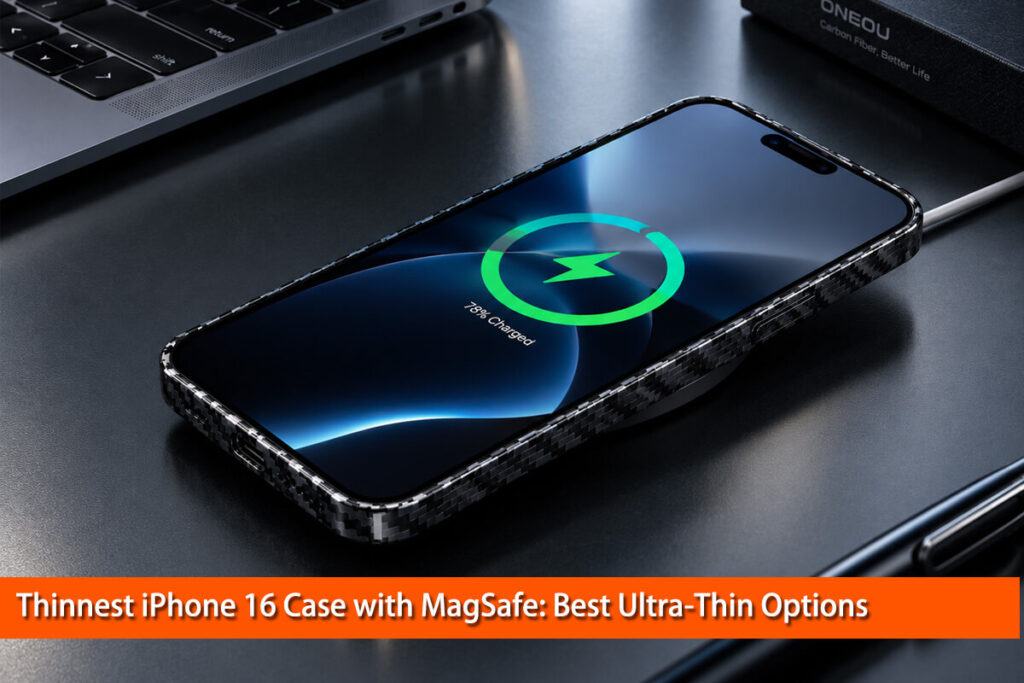
If you prefer wireless charging, use a compatible MagSafe or Qi2 charger that supports your iPhone model. Apple’s official charging-speed guide explains the requirements for both wired and wireless charging.
Neither method guarantees the same charging speed under every condition.
7. Choose a Compatible MagSafe or Qi2 Charger
Not all wireless chargers deliver the same performance.
Traditional Qi chargers, MagSafe chargers, and Qi2-certified chargers can differ in supported power levels and magnetic alignment. The maximum available speed depends on the specific iPhone, charger, adapter, and charging conditions.
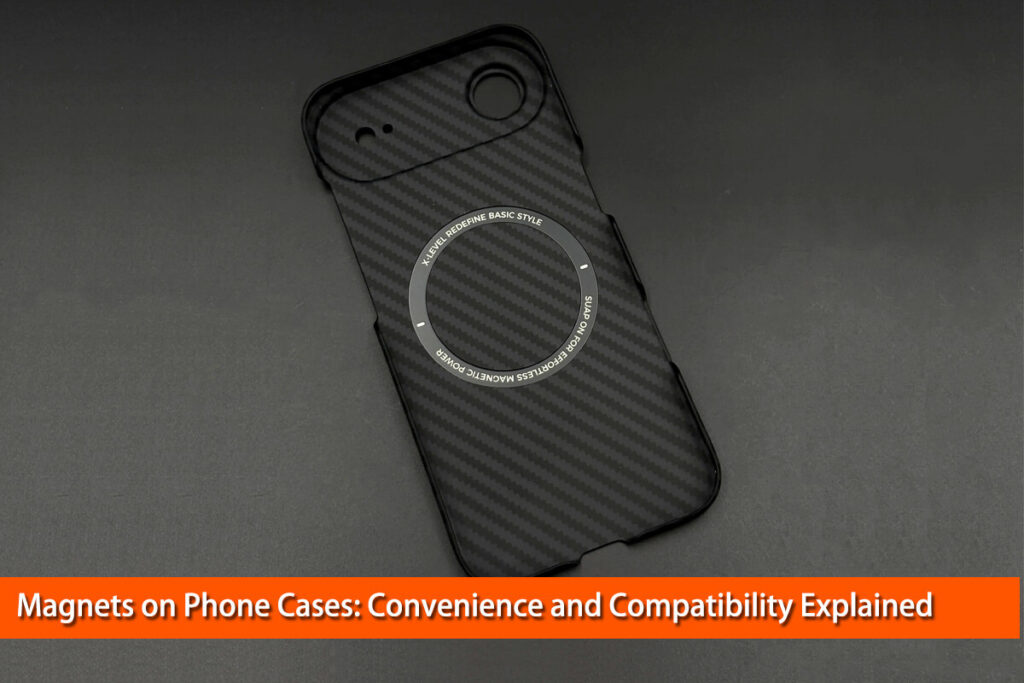
MagSafe uses magnets to help align the charger with compatible iPhones and cases. Qi2 also incorporates magnetic alignment in compatible products.
If you regularly charge wirelessly, check the charger’s specifications and use the required power adapter. Keep the phone correctly aligned and avoid placing metal objects between the phone and charger.
For a deeper comparison, read Oneou’s guide, MagSafe vs. Wireless Charging: The Ultimate Comparison.
8. Check Whether Your Phone Case Affects Charging
A phone case does not automatically slow charging. However, a thick or incompatible case can affect wireless charging, and a case that contributes to heat buildup may influence charging behavior.
From a materials-engineering perspective, the result depends on the complete construction—not just the material name.
For example, carbon fiber is electrically conductive. Its behavior in a phone case depends on the fiber arrangement, resin, thickness, and other materials in the structure. It would therefore be inaccurate to claim that every carbon fiber case blocks wireless charging.
If your iPhone charges slowly on a wireless charger, try removing the case and repeating the test under similar conditions.
If charging improves significantly, investigate the case’s thickness, magnetic alignment, and compatibility.
Oneou’s article, Do Carbon Fiber MagSafe Phone Cases Work with Wireless Charging?, explains these material and design considerations in greater detail.
For users who prefer a slim, lightweight design, a properly engineered Oneou carbon fiber phone case can offer a premium appearance and a thin profile. If you use MagSafe regularly, check the compatibility of the specific case with your iPhone and charging accessories rather than assuming that every carbon fiber case supports the same functions.
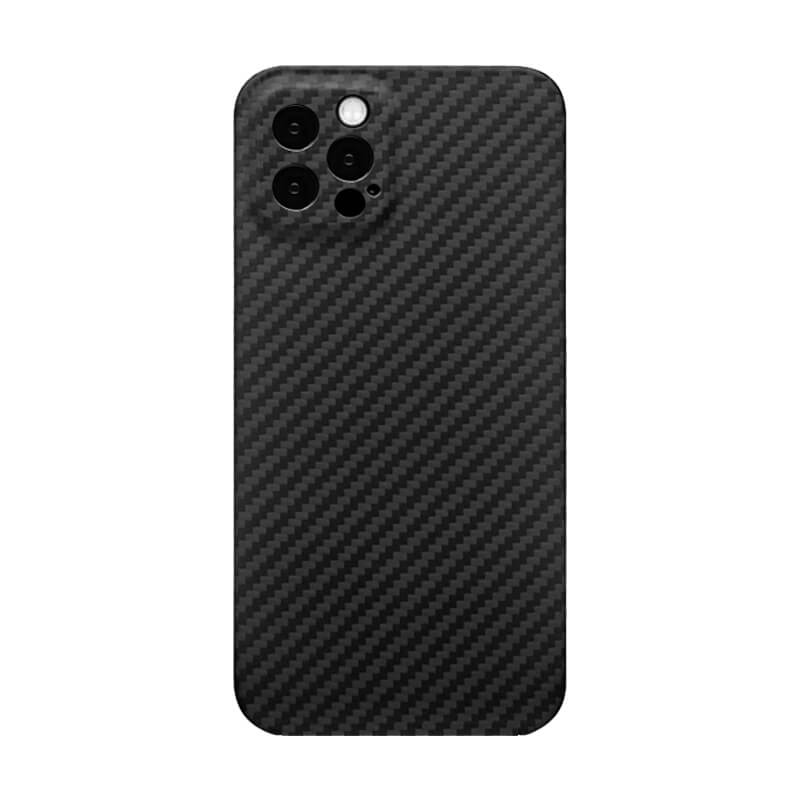
MagSafe Compatible;
Slim & Lightweight;
Precise Fit;
Premium Look;
Camera Protection;
Durable Design;
Easy Access.

9. Look for the Slow Charger Warning
Some iPhones running supported software versions can display a Slow Charger message when the connected charger may not provide optimal charging power.
On supported versions, open Settings → Battery and check the charging information. You may also see relevant charging information on the Lock Screen.
The warning does not necessarily mean that your phone or charger is defective. It indicates that a different charging setup may improve your experience.
Try a compatible wall adapter and cable, then compare the results.
If your device reports that a connected charger is incompatible, follow the message’s guidance and check the charger manufacturer’s specifications.
10. Understand Why Charging Slows at 80%
Many users assume something is wrong when their iPhone charges quickly at first but slows down after reaching approximately 80%.
In fact, this behavior is normal.
Lithium-ion batteries generally use a charging process that delivers power more quickly at lower charge levels and reduces charging current as the battery approaches its upper voltage limit. The slower final stage helps manage battery stress and heat.
Apple also provides battery-management features that can delay charging beyond 80% or limit the maximum charge, depending on the model and settings.
Check Settings → Battery for the available Charge Limit and Optimized Battery Charging options. The exact menu can vary by iPhone model and iOS version.
Do not permanently disable battery-protection features just to make charging appear faster. If you need a full battery for a particular trip, use the available charging controls when supported.
11. Inspect the Charging Port and Restart Your iPhone
If changing the charger and cable does not help, check the phone itself.
Look for visible debris or damage around the charging port. Do not insert metal objects or force tools into it. If you suspect liquid is present, disconnect the cable and follow Apple’s official liquid-detection instructions instead of attempting to charge through the port.
You can also restart your iPhone and test again with known-good charging equipment.
If the connector feels loose, charging repeatedly disconnects, or the phone shows persistent charging errors, professional inspection may be necessary.
12. Check Battery Health and Update iOS
An aging battery can affect the overall performance and usable capacity of your iPhone, but slow charging alone does not prove that the battery needs replacement.
Open Battery settings and review the battery health information available for your model. Look for service recommendations or other warnings.
If the problem began after a software update or app installation, check for available stable iOS updates and review battery activity.
If your iPhone remains slow to charge with multiple compatible chargers and cables, contact Apple Support or a qualified repair professional for diagnosis.
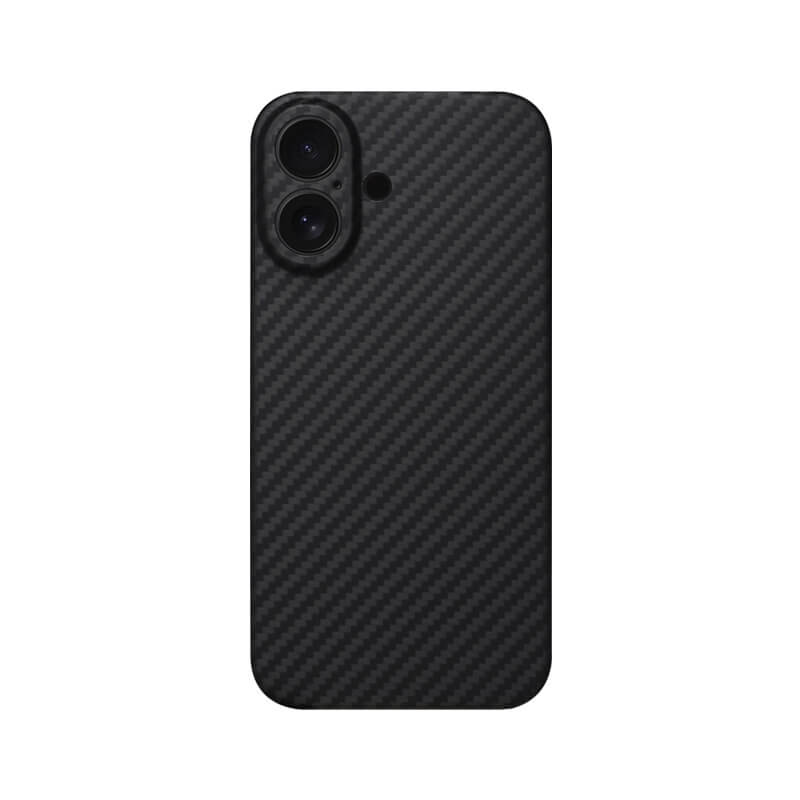
Strong MagSafe magnets ensure secure attachment.
Slim profile protects without adding unnecessary bulk.
Raised edges protect screen and camera.
Textured surface provides a secure grip.
Precise cutouts ensure easy everyday access.
Durable construction helps absorb everyday impacts.
Supports wireless charging without removing the case.
How Long Should It Take to Charge an iPhone?
There is no single charging time that applies to every iPhone.
The result depends on the model, battery capacity, starting percentage, charger, cable, temperature, and whether you are using the device during charging.
A compatible fast charger may substantially reduce charging time compared with a low-power USB port. However, the phone will generally slow charging as the battery approaches full capacity.
Wireless charging also varies by standard and model. A charger advertised with a high maximum wattage does not guarantee that your iPhone will continuously receive that amount of power.
For a useful comparison, test your own phone using the same starting battery percentage, charger, cable, and room conditions. Record the battery percentage after a fixed period, such as 15 or 30 minutes.
This provides a more meaningful result than comparing two charging tests performed under different conditions.
Does Airplane Mode Make an iPhone Charge Faster?
Airplane Mode may reduce some power consumption by disabling cellular connections and other wireless functions, depending on your settings.
However, the improvement varies. It is usually more important to use a suitable charger, manage heat, and avoid demanding activities while charging.
Consider Airplane Mode an optional experiment rather than a guaranteed fast-charging solution.
Frequently Asked Questions
Why is my iPhone charging slowly all of a sudden?
Check whether you have changed the charger or cable, whether the phone is overheating, and whether a demanding app is running. A damaged charging port or battery issue is also possible if the problem continues.
How can I make my iPhone charge faster in 10 minutes?
Use a compatible fast charger, connect directly to a wall outlet, keep the phone cool, and avoid intensive apps. The amount of charge gained in 10 minutes depends on your model and starting battery level.
Is a 30W or 65W charger safe for an iPhone?
A reputable, standards-compliant USB-C PD charger can negotiate power with a compatible iPhone. The phone determines how much power it accepts, so a higher-wattage adapter does not automatically make charging faster.
Can a carbon fiber phone case make charging slower?
A carbon fiber case does not necessarily slow charging. Its effect depends on its construction and compatibility with the charging system. If wireless charging becomes slow or inconsistent, remove the case and compare the results.
When should I replace my iPhone battery?
Do not replace the battery based on charging speed alone. Review Battery Health and any service recommendations, and seek professional diagnosis if the phone continues to have charging problems.
Final Thoughts
If your iPhone is charging slowly, start with the basics: check the charger, inspect the cable, reduce demanding phone use, and keep the device cool.
Next, review the charging settings and test whether the problem changes when you use a different compatible charger or remove the case during wireless charging.
From an engineering perspective, charging speed is the result of several factors working together: electrical power delivery, battery chemistry, temperature, software, and accessory design. Addressing the actual limitation is more effective than automatically buying a higher-wattage adapter.
With the right setup and a little troubleshooting, you can often improve charging performance while protecting your iPhone’s long-term battery health.